Image Randomizer is a jQuery plugin that will generate a random set of images each time a webpage is loaded or refreshed. Just specify few basic user settings, inject few HTML lines into your webpage and that's it. The plugin is designed for maximum adaptability with minimum setup requirements.
This Quick Guide is a brief demonstration of the basic features of Image Randomizer. It will show you the minimum setup steps required to get the plugin up and running fast. Image Randomizer has much more configuration options than what is shown here. The complete PDF User Guide included in this product will describe in more depth the complete functionalities and setup options of Image Randomizer.
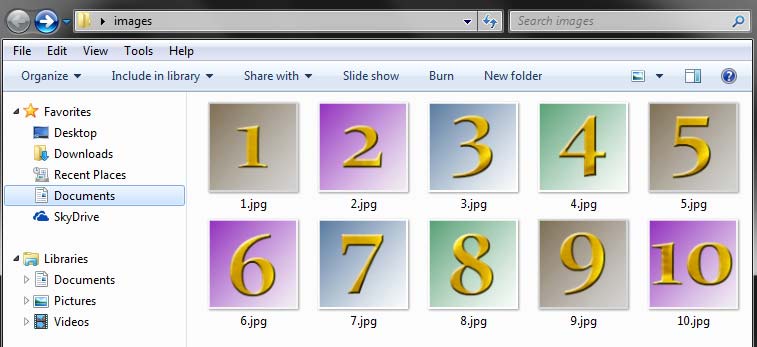
Image Randomizer is all about manipulating images. Thus, the most important folder for Image Randomizer is naturally some folder containing all of your images. Create a folder and name it images for instance. In this folder, create 10 images named 1.jpg, 2.jpg...10.jpg:
The setup of your HTML page can be accomplished in 3 easy steps:
1 - Include jQuery library in the <head> section of your HTML page:
<head>
<script type="text/javascript" src="js/jQuery-1.9.0.prod.js"></script>
</head>
2 - Include Image Randomizer script at the end of the <body> section of your HTML page:
<body>
.
.
.
<script type="text/javascript" src="js/jq_image_randomizer_1.0_prod.js"></script>
</body>
3 - In the <body> section of your HTML page, integrate the following line once for every random image you want to display:
<div id="rthumb" class="r_th0"><a href="#"></a></div>
For example, if you want to display 4 random images on your page, just paste the following 4 HTML lines in the <body> section:
<div id="rthumb" class="r_th0"><a href="#"></a></div>
<div id="rthumb" class="r_th1"><a href="#"></a></div>
<div id="rthumb" class="r_th2"><a href="#"></a></div>
<div id="rthumb" class="r_th3"><a href="#"></a></div>
You can then of course style the <div> tags to your liking.
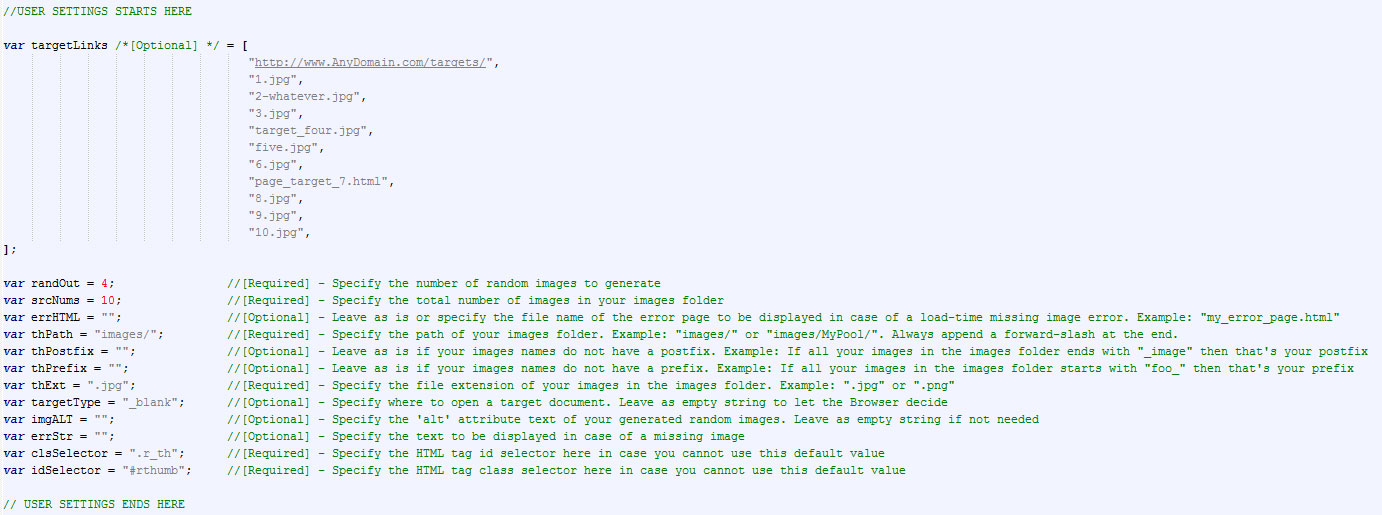
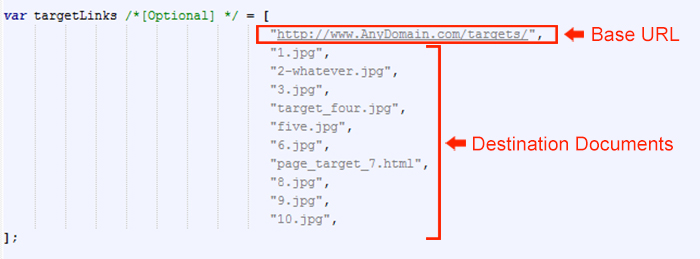
Setting up Image Randomizer is actually pretty easy. All the settings that needs configuration can be found in the top section of the script file and more than half of them are optional:
Thank you very much for viewing this page. If you have any queries or comments, please contact us via CodeCanyon or via support@brandfay.com