Text to Speech App for PC – Online/Offline

This package includes all TTS packages.
It is a one-click installable Python toolkit designed for Windows users, providing high-quality text-to-speech generation with ease.

Version: 1.1 | Release Date: 09th May 2025
Overview:

This Text-to-Speech app is a lightweight, high-performance model designed to quickly convert text into natural-sounding audio. This one-click installable Python toolkit is specifically built for Windows users, offering an intuitive way to generate text-to-speech output. Simply install the Text-to-Speech app and run the application. You can enter your text, select a voice, and your input will be converted into audio. You can then download the audio and use it for your project.

Key Features:

💻 Kokoro / Piper TTS: Runs locally – operates entirely on your own computer without requiring an internet connection.
🌐 Edge TTS: Requires an internet connection but offers a wide variety of multilingual options.
🔊 High-Quality Audio: Delivers clear and expressive voices with a natural tone.
🎵 File Formats: Edge-TTS produces an MP3 file, while Kokoro produces a WAV file.
🗑️ Uninstalls the application via cPanel

Table of Content

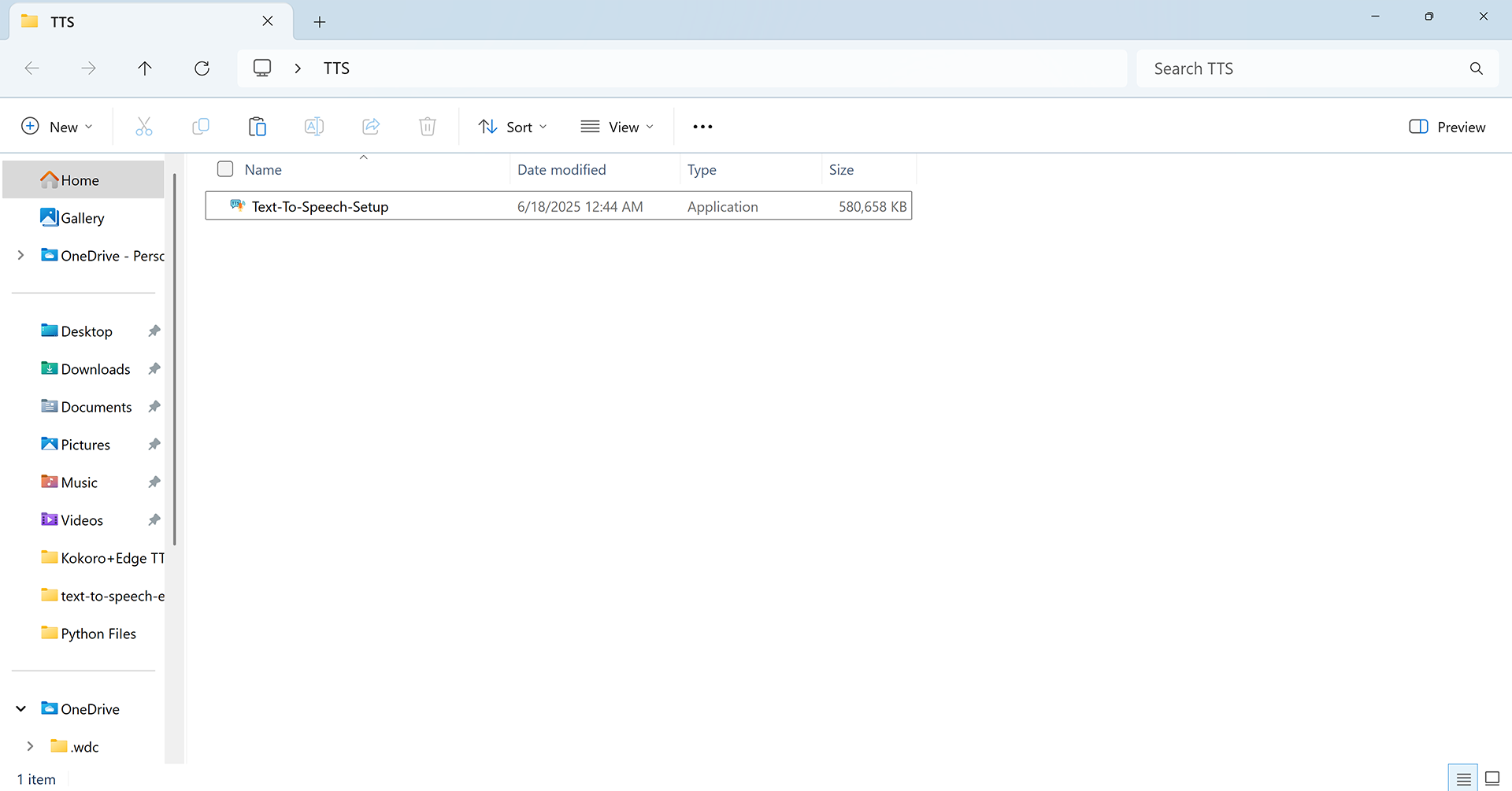
1. Extract the ZIP file and install Text-To-Speech

First, extract the ZIP file to any location on your PC. You will see a Text-To-Speech setup file. This will install all the required components for your TTS. Simply double-click the setup file to install Text-To-Speech on your PC. If you see any notice saying "Publisher Unknown," you can safely click "Yes."

2. Open the Text-To-Speech file

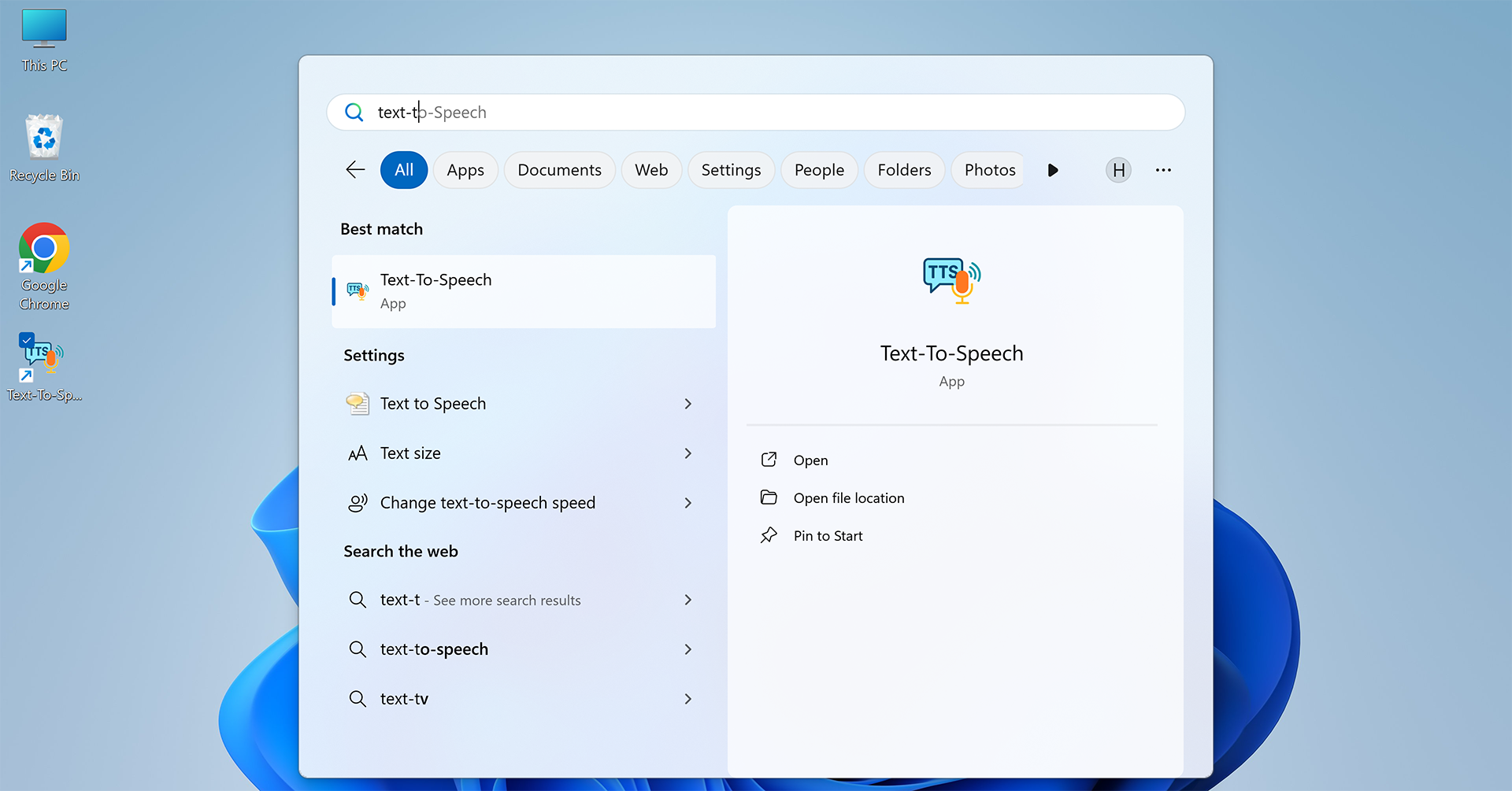
To run the application, double-click the Text-To-Speech shortcut file. You can also find Text-To-Speech by searching for it in the Start Menu. When you run the application, a Command Prompt window will open, and after a few minutes, the application will finish loading.

Please note that Edge TTS requires a constant internet connection, whereas Kokoro & Piper TTS only needs internet access once to download the voice files.

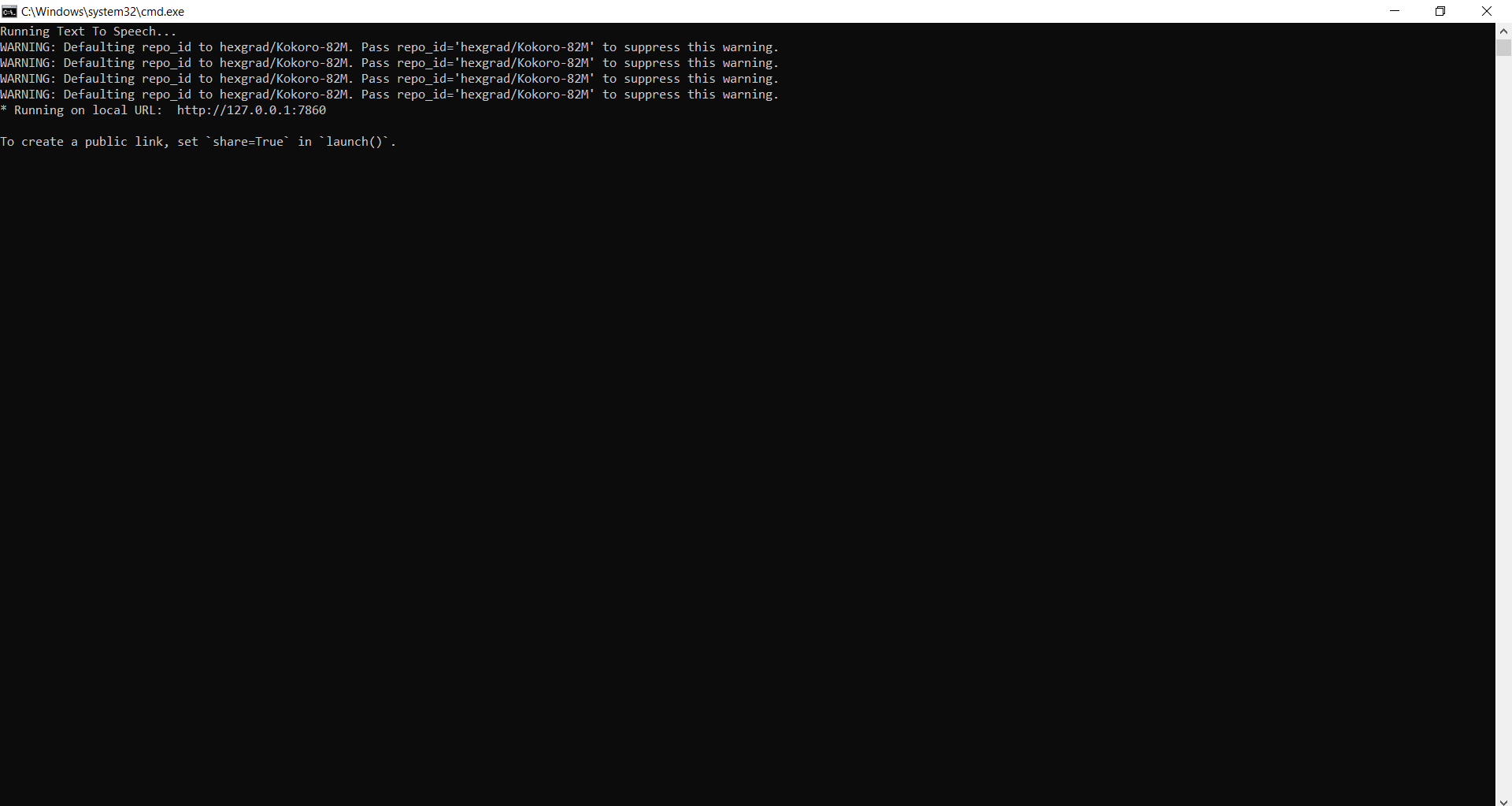
3. Wait for the Command Prompt to open

This will load all the voices for you to use, which may take several minutes (2–5 minutes depending on your PC), so please be a little patient. If you're using it for the first time, it may also download various voice files—so ensure that your internet connection is active and run the application as an administrator (right-click and select "Run as Administrator"). This download happens only once.

After a few minutes, a local URL will be generated (e.g., http://127.0.0.1:xxx). Once the URL appears, it should open automatically in your browser. If it doesn’t, press Control and click the URL, or copy and paste it into a browser such as Chrome, Edge, or Firefox. You may see some warnings in the Command Prompt (CMD) window, but they can be safely ignored.

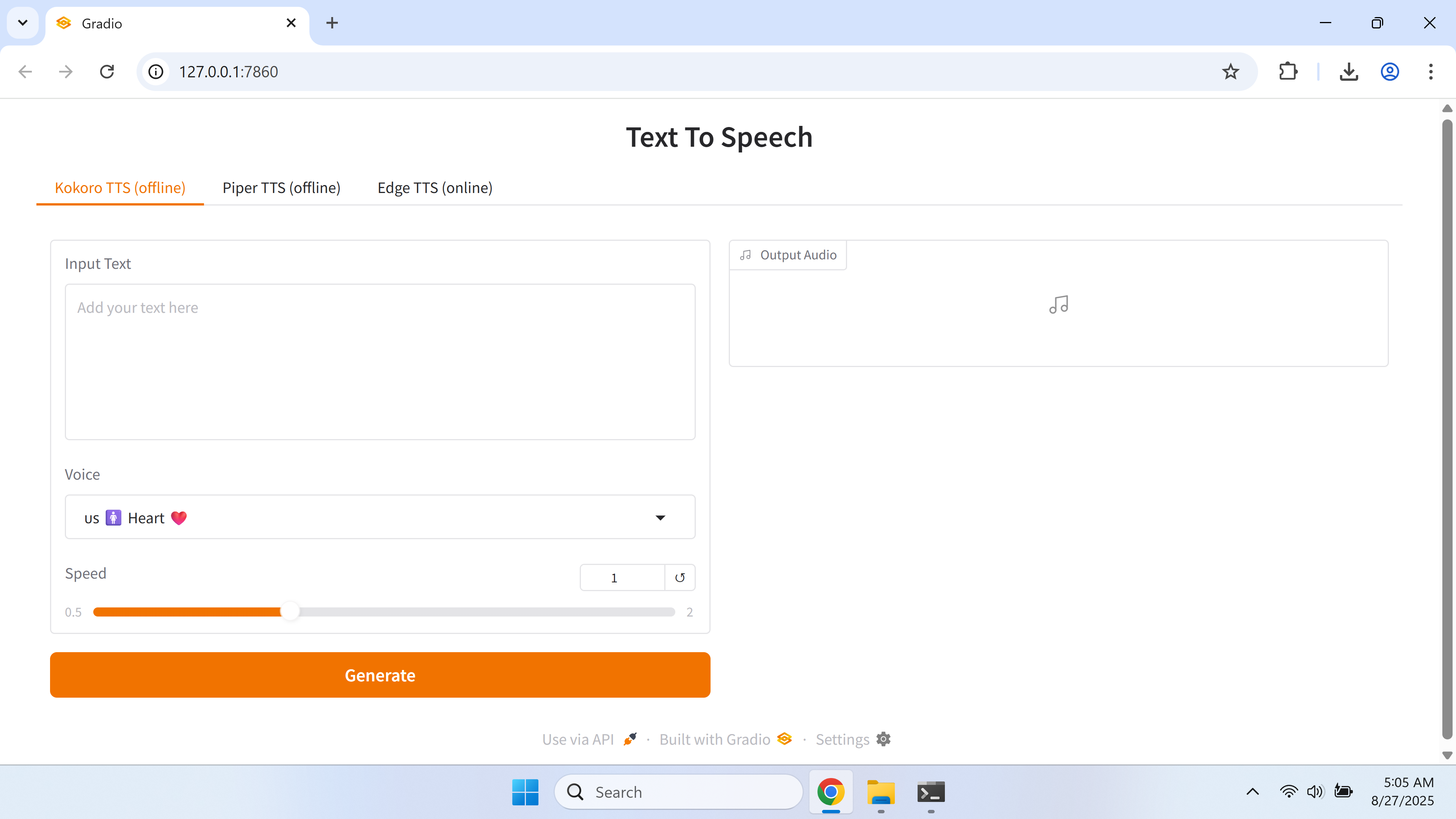
4. Text to Speech – Interface

Once the TTS interface opens, simply paste the text you want to convert into audio. Select the voice from the list, choose the speed, and then click on Generate. This will convert your text into audio, and you can click Play to listen or Download to save it to your PC.

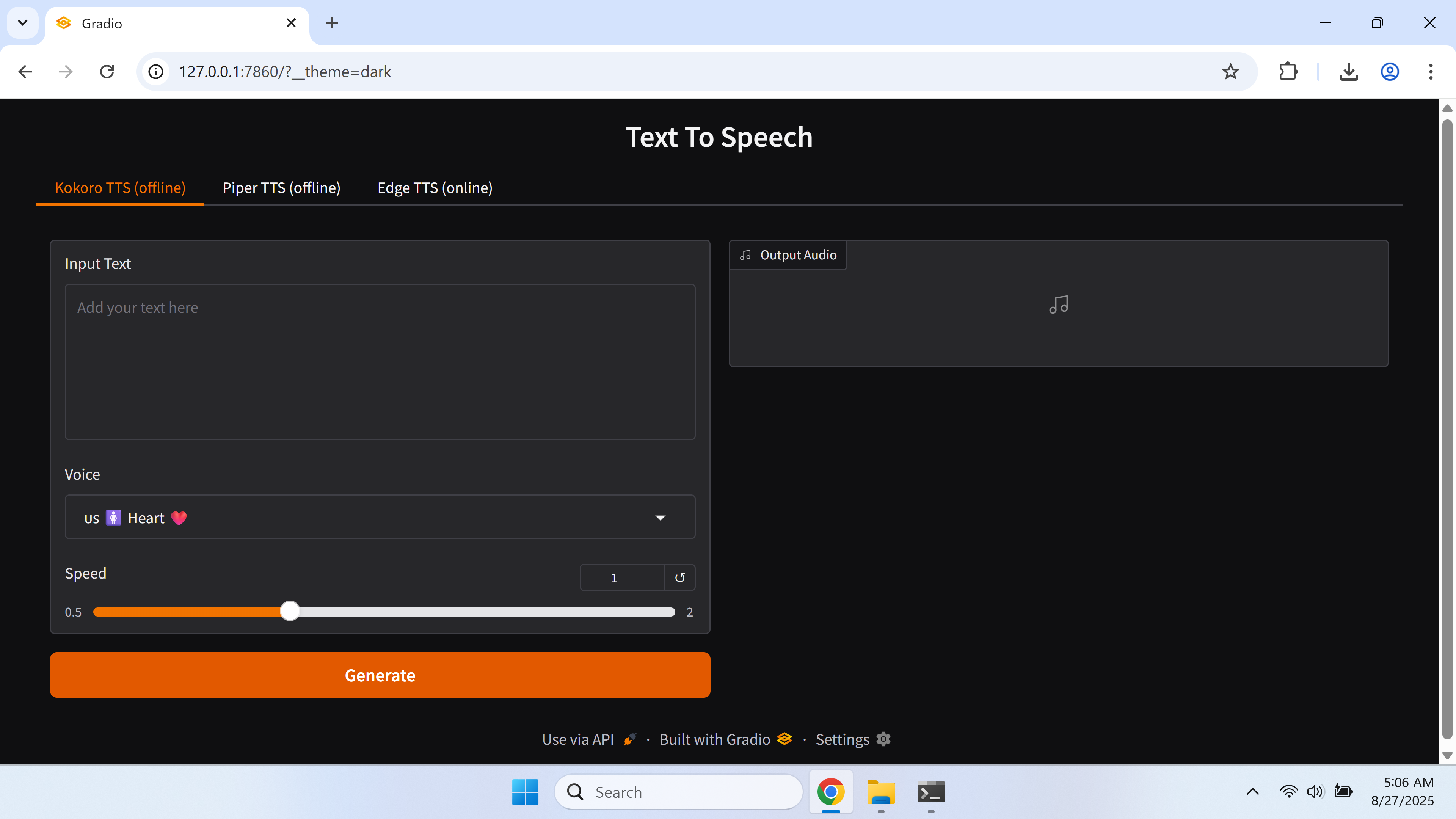
5. TTS Theme

You can also change the theme (Light or Dark) in TTS, which uses Gradio. Simply click on Settings at the bottom to easily change the theme. By default, it picks up your system theme.

Text to Speech App for PC

Thank you so much for purchasing this application! I will be happy to assist with any questions related to the TTS. While I cannot guarantee a solution for every issue, I will do my best to provide support.

If you have general questions about these TTS, please feel free to contact us at info@HeyLetsLearnSomething.com.

© Copyright - HeyLetsLearnSomething