Polysphere Puzzle 3D (Android And iOS)
- created: 03/10/2018
- latest update: 01/30/2019
- by: blackrock
- email: blackrock3191a@gmail.com
Thank you for purchasing my theme. If you have any questions that are beyond the scope of this help file, please feel free to email via my user page contact form here. Thanks so much!
Import project
- Unzip downloaded project
- Open it in Unity3D (required version 2017.1.1f1 or higher)
Edit Name, Icon and package name
- In Unity3D navigate to Edit → Project Settings → Player
- There you have to configure your game name, icon and Bundle Identifier
Configure Playfab Account
- Go to https://playfab.com/
- Register Account
- Create new game
- Go to your game on playfab webpage and navigate to Addons. Search for „Photon”, click it and push „Install Photon” button
- Open „StaticStrings.cs” file and edit Playfab and photon Ids:

Configure Advertising networks
- Create admob apps on admob, audience network and chartboost
- Go to LoginSplash scene and select AdsController object.
- Insert your advertising IDs
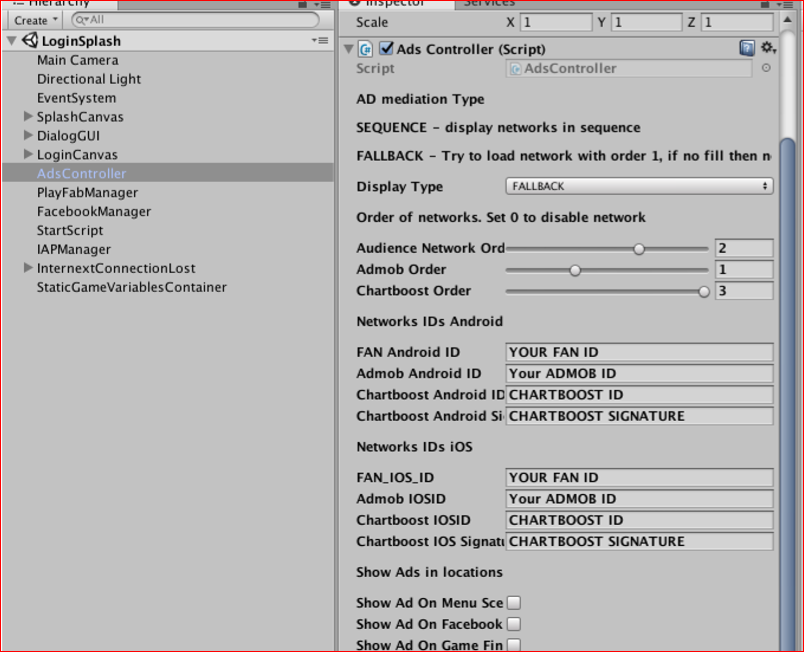
Setting up your project for Unity Services
Configure UnityAds
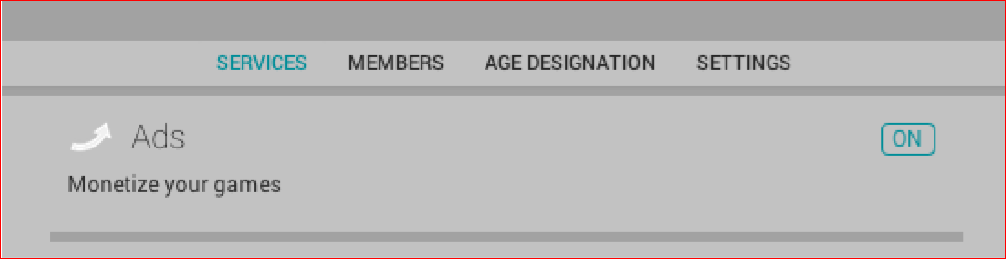
- Navigate to Window → Services
- Enable Ads
Configure In-App Purchases
- Navigate to Window → Services
- Enable In-App Purchasing
- Follow steps if required: https://docs.unity3d.com/Manual/UnityIAPSettingUp.html
FOR ANDROID:
- Follow steps from „Register the application” on website: https://docs.unity3d.com/Manual/UnityIAPGoogleConfiguration.html
FOR iOS
- Follow steps from „Register the application” on website: https://docs.unity3d.com/Manual/UnityIAPAppleConfiguration.html
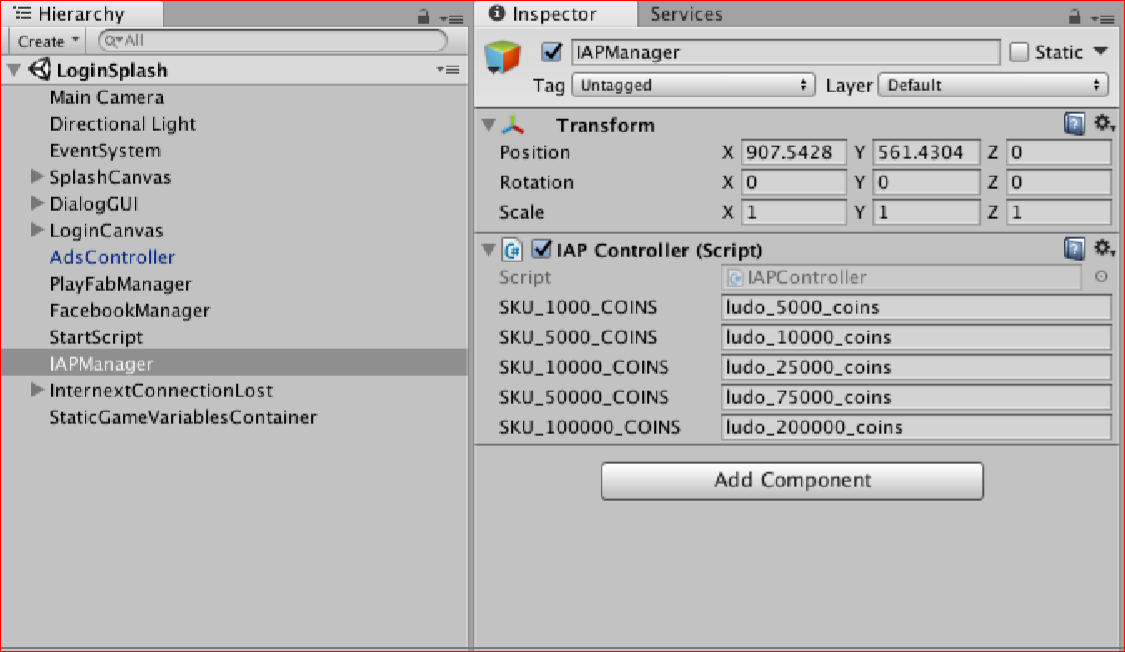
In-App Products names (you must put same names for android and ios on dashboard)
ludo_5000_coins
ludo_10000_coins
ludo_25000_coins
ludo_75000_coins
ludo_200000_coins
You can edit them in LoginSplash scene. Select IAPManager
Configure Facebook
- Go to https://developers.facebook.com/
- Create new application
- On facebook page navigate to your app and copy Application Identifier.
- Go to Unity3D. Navigate to Facebook → Edit Settings. Paste your Application Identifier
- Exand Android Build Facebook Settings and click Regenerate Android Manifest
- On facebook page navigate to your app → Settings
- Add Platform → Android. Fill data as on screenshot:
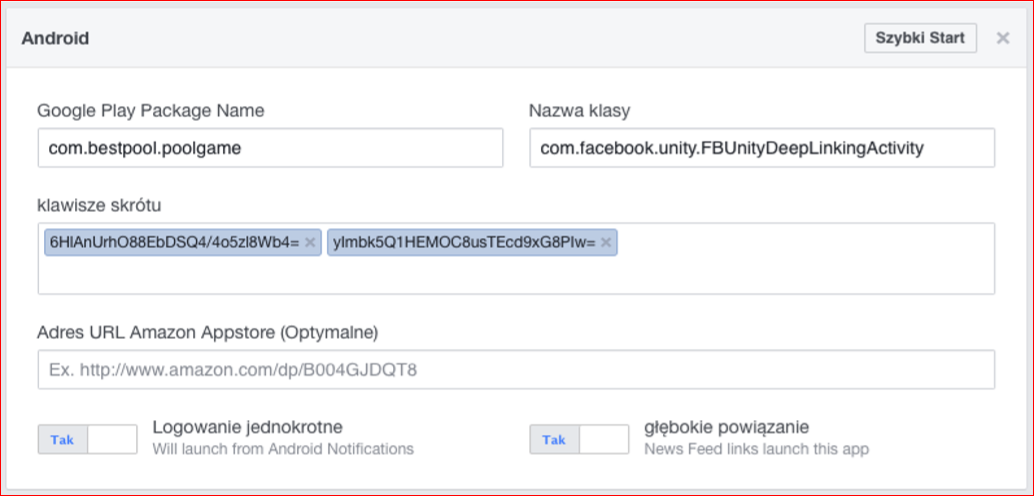
Google Play package name: same as Bundle Identifier in Unity3D Player settings
Class name: Don’t edit
Hash keys: Follow „Running sample apps” on page. Add keys for debug and release keystores: https://developers.facebook.com/docs/android/getting-started
- Add Platform → iOS. Fill data as on screenshot:
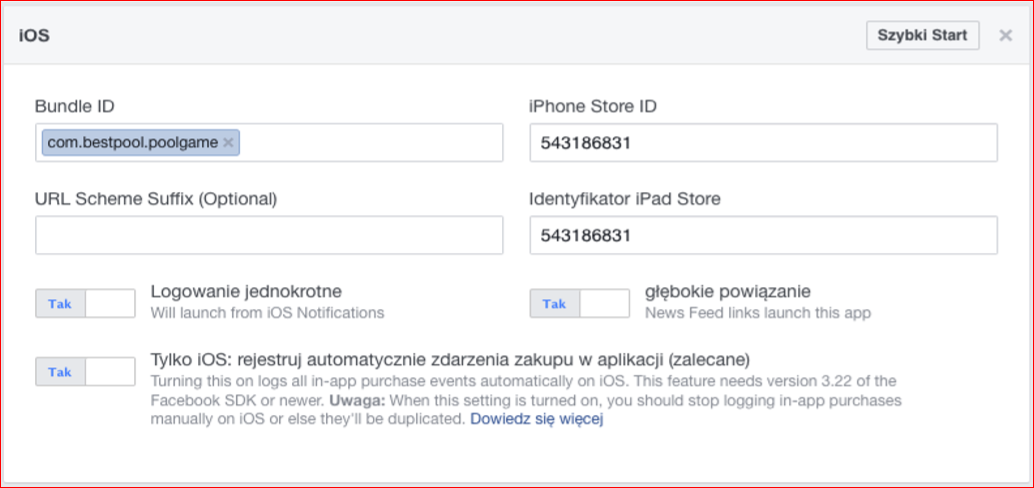
- Bundle ID – same as Bundle Identifier in Unity3D Player settings for iOS
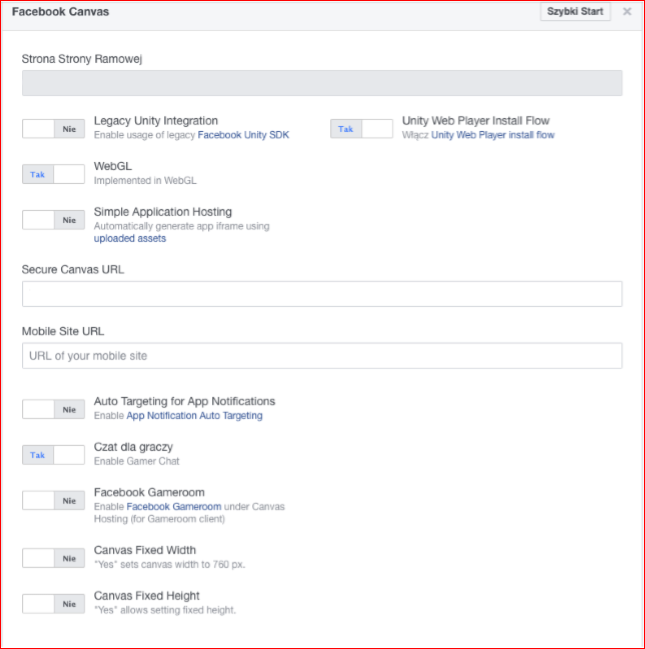
- Add Platform → Facebook Canvas. Fill data as on screenshot:
Build for Android
- File → Build Settings → choose Android → Build and Run
Build for iOS
- File → Build Settings → choose iOS → Build
- Open project in Xcode
- Right click on project → Add Files to project → Select GoogleMobileAds.framework from archive
- In build settings add other linker flags → Add „-lxml2” - In Build phases Add WebKit.framework
- In Build Settings Enable Modules → Yes
- In Build settings Enable Bitcode → No
- Run
Edit Graphics
- Edit files with same dimension in Assets/8Ball/Sprites
- You should not edit files from „DontEdit” directory
Edit Sounds
- Edit files from directory Assets/8Ball/Sounds
- Put identical names for that files